How to Enable Secure Boot in BIOS (Every Brand, Step by Step)
Enable Secure Boot in BIOS by disabling CSM first, with exact steps for ASUS, MSI, Gigabyte, and ASRock, plus fixes for greyed-out options and anti-cheat errors.
BIOS settings control how your motherboard behaves before Windows even loads — memory speeds, power states, virtualization, secure boot, boot order, wake-on-LAN, and dozens of toggles that most users leave at default without ever knowing what they do. The defaults are usually fine, but “usually fine” is not the same as “right for your build.” Enabling DOCP or EXPO unlocks the RAM speed you actually paid for. Toggling ErP cuts standby power but kills Wake-on-LAN. Network Stack matters for PXE booting and nothing else. Each setting has a specific job, a specific cost, and a specific brand label — ASUS, MSI, Gigabyte, and ASRock often call the same feature by three different names. This category explains what each BIOS setting actually does, when to change it, and how to find it in your specific motherboard’s UEFI menu. Step-by-step instructions are validated against the manufacturer’s documentation for the board series mentioned, not copied from generic guides. For the parts and headers BIOS settings interact with, see our Hardware Guides for boot-stage failures and unstable systems, see Troubleshooting.
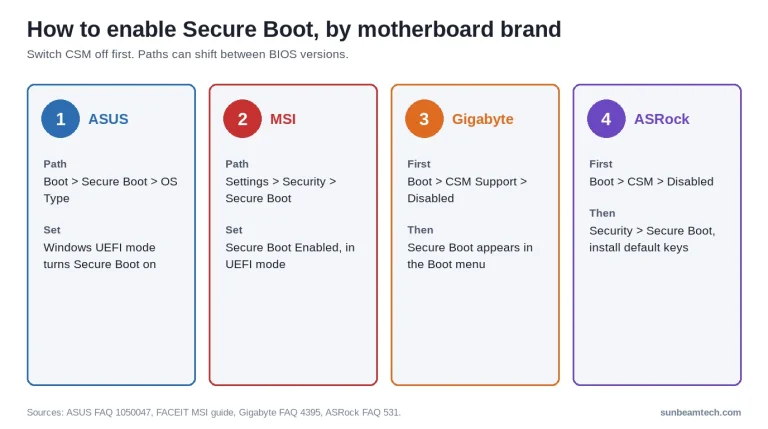
Enable Secure Boot in BIOS by disabling CSM first, with exact steps for ASUS, MSI, Gigabyte, and ASRock, plus fixes for greyed-out options and anti-cheat errors.
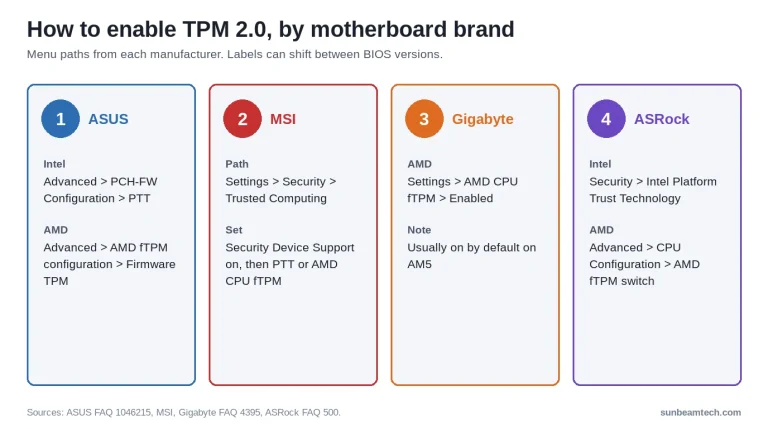
Enable TPM 2.0 (PTT on Intel, fTPM on AMD) in BIOS with exact menu paths for ASUS, MSI, Gigabyte, and ASRock, plus fixes for when the option is missing or greyed out.
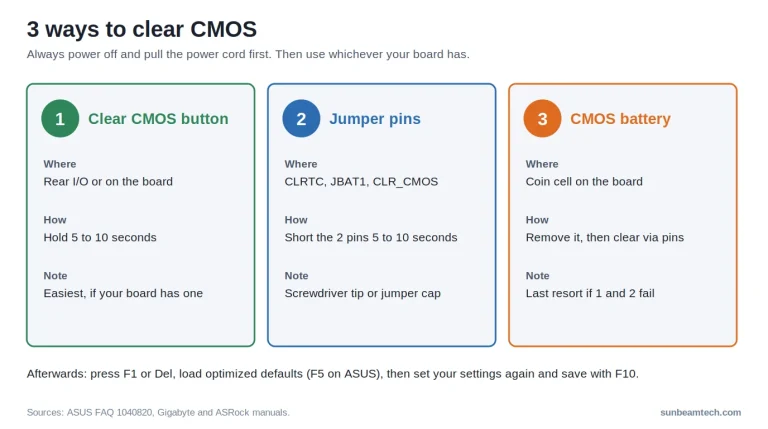
How to clear CMOS with the button, the jumper pins or the battery, what it resets, and the settings to put back afterwards.

XMP (Extreme Memory Profile) is an Intel-developed standard that makes DDR4 and DDR5 RAM run at its advertised speed using a pre-stored overclock profile. Last updated: July 2026 Quick Answer: Does XMP Actually Make RAM Faster? Yes, enabling XMP makes your RAM run at the speed you paid for. Without it, your system defaults to…

XMP Profile 1 applies your RAM’s validated core settings, while Profile 2 programs additional subtimings for marginal performance gains at higher instability risk. Last updated: June 2026 Quick Answer: XMP 1 or 2, Which Should You Use? Use XMP Profile 1. It applies your RAM’s full advertised frequency, primary timings, and voltage, everything you paid…

XMP (Extreme Memory Profile) is an Intel specification that lets compatible DDR4 and DDR5 RAM run above JEDEC default speeds using pre-validated overclock settings stored on the stick. Last updated: June 2026 Quick Answer: How Do You Enable XMP in BIOS? To enable XMP, restart your PC and press DEL (or F2) to enter BIOS….

XMP is Intel’s licensed DDR4/DDR5 overclocking profile standard, while EXPO is AMD’s open, royalty-free equivalent built specifically for DDR5 and AM5 Ryzen platforms. Last updated: June 2026 Quick Answer: What Is the Difference Between XMP vs EXPO? XMP and EXPO do the same job: they store pre-tested frequency, voltage, and timing data on your RAM…

XMP (Extreme Memory Profile) is an Intel-developed BIOS standard that makes RAM automatically run at its advertised speed instead of the slower universal JEDEC default. Last updated: June 2026 Quick Answer: What Is XMP? XMP is a pre-validated overclocking profile stored on your RAM’s SPD chip. Without it, a DDR4-3600 kit runs at DDR4-2133. With…

Fast Boot is a UEFI/BIOS setting that reduces startup time by skipping portions of the Power-On Self-Test (POST), including full hardware initialization, USB enumeration, and memory training. Last updated: June 2026 Quick Answer: What Is Fast Boot in BIOS? Fast Boot is a firmware setting that lets your PC skip most of the hardware checks…

SATA hot plug is a BIOS feature that lets you connect and disconnect SATA drives while the system is powered on without causing a crash or data loss. Last updated: May 2026 Most people who land on this page saw the option sitting in their BIOS and had no idea whether to touch it. That’s…
Independent PC hardware guides written by builders, for builders. No sponsored rankings, no affiliate bias — just straightforward advice to help you make better decisions about your next build.