How Many SSDs Can a PC Have? SATA NVMe and M.2 Limits
A PC can have between 1 and 10+ SSDs simultaneously, limited by the number of M.2 slots, SATA ports, available PCIe lanes, and PSU connectors on your specific motherboard.
Last updated: October 2026
Table of Contents
- Quick Answer: How Many SSDs Can a PC Have?
- The Three Types of SSDs and How They Connect to Your PC
- SATA SSDs (2.5-Inch)
- M.2 SSDs (NVMe and SATA)
- PCIe Add-In Card SSDs
- How Many SSDs Can a PC Have? Limits by Motherboard Form Factor
- Does Chipset Matter? Intel vs. AMD
- The Hidden Limits Nobody Talks About
- PCIe Lane Limits and Bandwidth Contention
- PSU and SATA Power Connector Limits
- BIOS/UEFI Drive Detection Limits
- How Many SSDs Do You Actually Need? By Use Case
- Gaming PC
- Content Creation and Video Editing
- NAS, File Server, and Home Lab
- Budget and Everyday PC
- Can You Add More SSD Slots Than Your Motherboard Has? Expansion Options
- How Many SSDs Can a Laptop Have?
- How to Check How Many SSD Slots Your PC Has Right Now
- Method 1: Check Your Motherboard Manual or Spec Page
- Method 2: Use Free Software
- Method 3: Physical Inspection
- FAQ: Common Questions About SSD Limits
- Can you have multiple SSDs in one PC?
- How many SSDs can a PC fit?
- Can I put 3 SSDs in my PC?
- Is a 1TB SSD overkill for a gaming PC?
- How many SSDs do I need for a gaming PC?
- The Bottom Line
Quick Answer: How Many SSDs Can a PC Have?
Most desktop PCs support 6 to 10 SSDs at once, combining M.2 slots (typically 2 to 5 on a consumer ATX board) with SATA ports (typically 4 to 6). Mini-ITX builds may top out at 3 to 6 drives, while E-ATX workstation boards can handle 12 or more. Add a PCIe M.2 expansion card and you can push that number higher, as long as your board can split a free x16 slot between several drives (more on that below).
The real answer isn’t a single number. It depends on your motherboard’s form factor, chipset, how many PCIe lanes your CPU provides, and how many SATA power connectors your PSU has. This guide breaks it all down by interface type, board size, and use case so you know exactly where your ceiling sits.
- 🟢 Mini-ITX: 3 to 6 SSDs (1 to 2 M.2 + 2 to 4 SATA)
- 🟢 Micro-ATX: 6 to 9 SSDs (2 to 3 M.2 + 4 to 6 SATA)
- 🟢 ATX: 7 to 11 SSDs (3 to 5 M.2 + 4 to 6 SATA)
- 🟢 E-ATX / HEDT: 12 to 16+ SSDs (4 to 6 M.2 + 8 to 10 SATA)
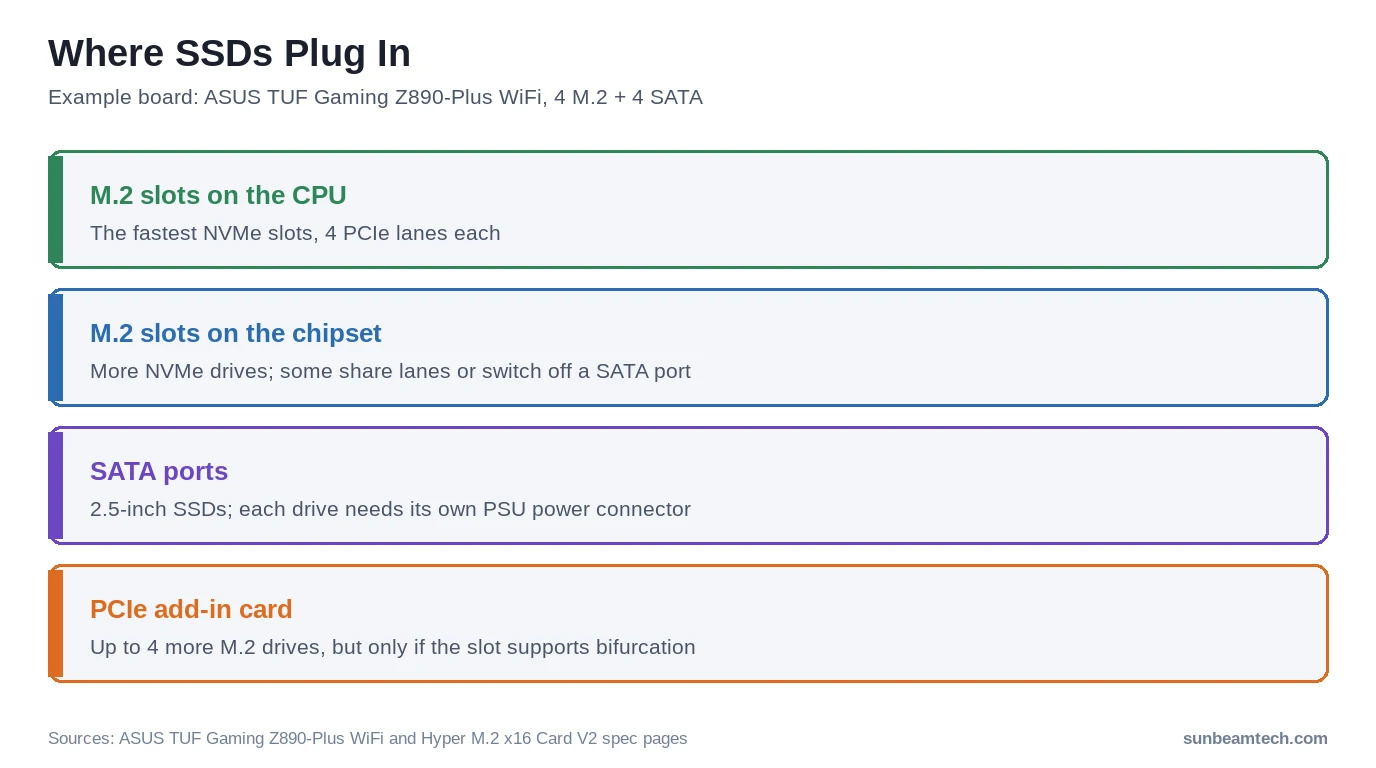
- 🟡 PCIe lane sharing: NVMe drives each use 4 PCIe lanes, from the CPU or the chipset; some slots share lanes
- 🟡 M.2 / SATA conflict: Some M.2 slots disable a SATA port when occupied
- 🟡 SATA power: Each 2.5-inch drive needs its own PSU connector; check your PSU’s cable layout before buying drives
- 🔴 Soldered laptop SSDs: Not upgradeable; check your model before buying
The Three Types of SSDs and How They Connect to Your PC
Before counting slots, you need to know what types of SSDs exist. The question of how many SSD drives can a PC have has different answers depending on which interface you’re using, because each type connects differently and competes for different physical resources on your board.
SATA SSDs (2.5-Inch)
The classic form factor. A 2.5-inch SATA SSD connects via two cables: a SATA data cable running to the motherboard and a SATA power connector from your PSU. Speed is capped at roughly 550 MB/s read and 520 MB/s write under SATA III. Fast enough for storage drives. Not fast enough for a boot drive in 2026.
Your limits here are twofold. First, the number of SATA ports on your motherboard (typically 4 to 6 on consumer boards). Second, the number of SATA power connectors on your PSU. Budget power supplies may only have 4 to 6 of them across all cables. It’s a physical ceiling.
M.2 SSDs (NVMe and SATA)
M.2 drives plug directly into a dedicated slot on the motherboard, no cables required. Two very different protocols share the M.2 connector: SATA M.2 (same ~550 MB/s limit as 2.5-inch SATA) and NVMe M.2 (the fast stuff).
NVMe speeds scale with PCIe generation. A PCIe 3.0 x4 NVMe drive peaks around 3,500 MB/s. PCIe 4.0 x4 drives hit around 7,000 MB/s. Current-gen PCIe 5.0 x4 drives, found on platforms like Intel Z890 and AMD X870E, push 14,000 MB/s and above. That’s roughly 25x faster than SATA. Not all M.2 slots support both SATA and NVMe, though. Check your board’s spec sheet before assuming a slot will work with any M.2 drive. If you want to learn more about physical size differences between M.2 drives, the M.2 SSD form factor guide (2280, 2242, 2230) covers exactly what fits where.
PCIe Add-In Card SSDs
This is where things get interesting for enthusiasts. Some SSDs are full PCIe cards, either a single NVMe drive built onto a standard add-in card, or a carrier card that holds multiple M.2 drives in a single PCIe x16 slot. The ASUS Hyper M.2 x16 V2, for example, fits four M.2 drives into one x16 slot. This is how the question of how many SSD cards can you have in a PC becomes meaningful: each free PCIe x16 slot can theoretically hold four M.2 drives, if the board lets you split that slot four ways.
Workstation territory. But increasingly relevant for enthusiast desktop builds that have run out of native M.2 slots.

How Many SSDs Can a PC Have? Limits by Motherboard Form Factor
The honest answer to how many SSD drives can a PC have depends almost entirely on your motherboard’s form factor and chipset. Here’s the breakdown, with realistic slot counts based on what manufacturers actually ship in 2026.
| Form Factor | Typical M.2 Slots | Typical SATA Ports | Max Native SSDs | Common Use Case |
|---|---|---|---|---|
| Mini-ITX | 1 to 2 | 2 to 4 | 3 to 6 | Budget / compact builds |
| Micro-ATX | 2 to 3 | 4 to 6 | 6 to 9 | Mid-range desktop |
| ATX | 3 to 5 | 4 to 6 | 7 to 11 | Mainstream / gaming |
| E-ATX / HEDT | 4 to 6 | 8 to 10 | 12 to 16+ | Workstation / content creation |
| Server boards | 8 to 16+ | 10 to 20+ | 20 to 30+ | NAS / enterprise |
Exact counts vary by chipset and manufacturer. Always verify your specific board’s spec sheet before purchasing drives.
Does Chipset Matter? Intel vs. AMD
Yes. And this is where a lot of buyers get caught off guard.
Check the exact board, not just the chipset. ASUS’s TUF Gaming Z890-Plus WiFi (for Core Ultra 200 series CPUs like the Core Ultra 9 285K) lists 4 M.2 slots and 4 SATA ports. ASUS’s ROG Strix X870E-E Gaming WiFi (an X870E board for Ryzen 9000 series CPUs such as the Ryzen 9 9950X) lists 5 M.2 slots and 4 SATA, but filling M.2_2 or M.2_3 drops the main PCIe 5.0 x16 slot to x8. Mid-range chipsets, including AMD B850 and Intel B860, typically land at 2 to 3 M.2 slots and 4 SATA ports.
The Hidden Limits Nobody Talks About
Slot count is just part of the picture. Three additional ceilings can stop you cold even if you have empty ports sitting right there on the board.
PCIe Lane Limits and Bandwidth Contention
Every NVMe SSD consumes PCIe lanes. Typically four lanes (x4) per drive. Modern CPUs allocate a fixed pool of CPU-direct PCIe lanes: Intel lists 24 for the Core Ultra 9 285K; AMD lists 28 total, 24 usable, for the Ryzen 9 9950X. That sounds like a lot until you account for the primary GPU taking 16 lanes, leaving just 8 for storage (two NVMe drives at x4 each).
The rest of your M.2 slots run through the chipset, which adds a small amount of latency and shares bandwidth across USB, SATA, and other chipset-connected peripherals. Filling every M.2 slot with fast PCIe 5.0 NVMe drives on a chipset-connected slot won’t give you the same throughput as CPU-direct slots. Not a disaster in practice. But worth understanding if you’re optimizing a workstation for sequential read speeds.
The smarter approach for most builds: one fast NVMe on a CPU-direct slot for your OS and primary applications, then SATA SSDs for mass storage. Cheaper per gigabyte and no lane competition.
PSU and SATA Power Connector Limits
Every 2.5-inch SATA SSD needs a dedicated SATA power connector from your PSU. Budget and mid-range power supplies typically ship 4 to 6 SATA power connectors spread across 2 to 3 cables, each daisy-chained. Power draw itself isn’t the problem: Samsung’s 870 EVO datasheet lists about 2.0 to 2.5W average while reading or writing, and 30 to 35mW at idle. The physical connector count is.
How many drives one cable can carry isn’t a universal number. It depends on the PSU and the cable, so use the connectors your power supply shipped with and check its manual or spec sheet for the cable layout, especially if you’re running six or more SATA drives. A PSU cable breakdown can help you identify which connectors on your power supply are safe to use for storage.
BIOS/UEFI Drive Detection Limits
This one surprises people. Older UEFI firmware has a hard ceiling on the number of bootable devices it can enumerate during POST. On legacy setups, this could be as low as 8 to 12 entries. Modern UEFI with GPT partition tables handles more drives gracefully, but outdated firmware can cause drives to simply not appear in the boot menu or device list.
The fix is simple: update your BIOS before installing multiple drives. Check your motherboard manufacturer’s support page for the latest firmware. Most current boards from ASUS, MSI, Gigabyte, and ASRock handle 10 or more drives without issue on updated firmware, but running a 2021 BIOS version on a board that launched in 2022 is asking for detection headaches.
How Many SSDs Do You Actually Need? By Use Case
Knowing the technical ceiling is useful. Knowing what actually makes sense for your situation is more useful.
Gaming PC
One NVMe SSD handles everything for most gamers. A PCIe 4.0 x4 drive at 1TB or 2TB covers your OS, apps, and active game library. Big AAA installs vary a lot: Steam lists 70GB for Cyberpunk 2077 and 150GB for Baldur’s Gate 3, so a 1TB drive fits roughly 6 to 13 games that size before Windows and your apps take their share. 2TB is the smarter buy if you maintain a large active library and hate constantly uninstalling games to make room.
The practical sweet spot: one PCIe 4.0 NVMe (1 to 2TB) as your primary drive, plus one SATA SSD (1 to 2TB) for older titles and media you don’t need top-tier load speeds on. That’s two SSDs total. Anything beyond that is only necessary for large libraries or if you also do streaming, recording, or video editing on the same machine.
Content Creation and Video Editing
This is where three or four SSDs earns its keep. 4K RAW footage workflows demand sequential write speeds of 1 GB/s or more, which only NVMe delivers. A solid production setup looks like this:
- Drive 1: Fast PCIe 4.0 or 5.0 NVMe for the operating system and applications
- Drive 2: Second NVMe as a scratch disk for active project files and render cache
- Drive 3 to 4: SATA SSDs for completed project archives and B-roll footage storage
Running your scratch disk on a separate physical drive from your OS drive meaningfully reduces bottlenecking in apps like DaVinci Resolve and Adobe Premiere. Not overkill. A genuine workflow improvement.
NAS, File Server, and Home Lab
This is the scenario where maximizing SSD count matters most. SATA SSDs are the cost-effective choice at scale since NVMe capacity commands a significant price premium per gigabyte. On consumer hardware, filling a server-style E-ATX board with SATA SSDs and adding a Host Bus Adapter (HBA) card for additional SATA ports gets you 20 or more drives on a single system. Server boards take this even further.
Budget and Everyday PC
One NVMe SSD. Full stop. A 500GB to 1TB drive covers web browsing, office work, media playback, and light gaming without any compromise. Add a second drive only when your primary hits 80% capacity. No need to complicate it.
Can You Add More SSD Slots Than Your Motherboard Has? Expansion Options
Yes, and it’s easier than most people expect. Two main expansion paths exist for desktops with a free PCIe slot.
PCIe M.2 expansion cards are the most popular option. A card like the ASUS Hyper M.2 x16 V2 occupies one PCIe x16 slot and holds up to four M.2 drives. The catch: it’s a passive card, so all four only show up if your board can split (bifurcate) that slot into four x4 links. ASUS’s own bifurcation table says the number of drives you get depends on the CPU and the motherboard. On a board like the TUF Gaming Z890-Plus WiFi, the second full-length slot runs at x4, which only has lanes for one drive. Check your board’s table before you buy.
SATA HBA expansion cards add SATA ports through a free PCIe slot. Basic non-RAID 4-port cards typically run $20 to $60 on a PCIe x1 or x4 slot and cover simple mass-storage expansion. Higher-end RAID-capable cards like the SilverStone ECS04 use dual Mini-SAS SFF-8087 connectors on a PCIe x8 slot to deliver up to 8 SATA/SAS ports (via breakout cables) and are priced well above the basic cards, aimed at NAS and home-lab builds that need maximum drive count rather than the cheapest option.
USB NVMe enclosures aren’t ideal for primary storage due to USB overhead, but they’re a clean solution for backup drives or overflow storage that doesn’t need to be inside the case.
| Expansion Type | Slots Added | PCIe Slot Used | Approx. Cost | Best For |
|---|---|---|---|---|
| M.2 PCIe card (e.g., Hyper M.2 x16) | Up to 4 M.2 (needs slot bifurcation) | x16 | $30 to $80 | NVMe-heavy workloads |
| SATA HBA card | 4 to 8 SATA ports | x1, x4, or x8 | $20 to $190 | Budget to NAS-grade mass storage |
| USB NVMe enclosure | 1 NVMe | USB 3.2 | $25 to $50 | Portable / backup |
One caveat: every expansion card consumes a PCIe slot and takes its lanes from the CPU or the chipset, depending on the slot. Verify your CPU and chipset can support the extra bandwidth before buying, especially on B-series boards with more limited chipset connectivity.
How Many SSDs Can a Laptop Have?
Significantly fewer options than desktop. And for some laptops, none at all.
Most consumer laptops ship with a single M.2 slot. That’s it. You get one drive, and upgrading means replacing that drive entirely. Gaming laptops tend to be more generous: models from the ASUS ROG and MSI Raider lines typically offer two M.2 slots, and some support RAID 0 between them for maximum sequential speeds. Business and workstation laptops, such as the Lenovo ThinkPad P-series and Dell Precision line, can include 2 to 3 M.2 slots.
Ultrabooks are the worst case. Many use soldered NAND storage that’s physically integrated onto the motherboard. Not upgradeable at all. If your storage fills up, you’re buying a new laptop or living with an external drive.
Before opening anything, use HWiNFO64 or CPU-Z to detect available M.2 slots in software. Then cross-reference with your model’s iFixit teardown at ifixit.com to confirm whether a second slot exists and what size it accepts.
How to Check How Many SSD Slots Your PC Has Right Now
You don’t have to guess. Three methods work reliably, and you can use all three together to get a definitive answer.
Method 1: Check Your Motherboard Manual or Spec Page
Go to your board manufacturer’s website, search your model number, and click Specifications. Look for the Storage section. It will list M.2 slots with their supported key types (M key, B+M key), supported protocols (NVMe, SATA), supported lengths (2280, 2242, 2230), and SATA port count. This is the authoritative source. Cross-reference this with the SSD installation guide for SATA and M.2 to understand what the spec listings actually mean for installation.
Method 2: Use Free Software
- HWiNFO64: Shows all detected drives, their interface types, and connected slots
- CPU-Z (Mainboard tab): Identifies your chipset so you can cross-reference the manufacturer’s spec sheet for slot counts
- CrystalDiskInfo: Shows connected drives and confirms whether they’re running NVMe or SATA protocol
Download HWiNFO64 from the official site at hwinfo.com/download. Free, no install required, no bloatware.
Method 3: Physical Inspection
For desktops, open the side panel and look directly at the motherboard surface. M.2 slots are horizontal connectors, usually labeled M.2_1, M.2_2, and so on, often near the chipset heatsink or between PCIe slots. SATA ports are vertical connectors clustered near the edge of the board, typically labeled SATA_1 through SATA_6. Count both. For laptops, the iFixit teardown database is your best resource since internal layouts vary enormously between models.
Once you know your slot count and want to actually add a drive, the step-by-step M.2 NVMe SSD installation guide walks through the process from removing the heatsink cover to torquing the M.2 screw.
FAQ: Common Questions About SSD Limits
Can you have multiple SSDs in one PC?
Yes, absolutely. Most desktop PCs support 2 to 10+ SSDs simultaneously, depending on available M.2 slots, SATA ports, and any PCIe expansion cards installed. There’s no operating system limit on the number of drives. Windows, Linux, and macOS can all handle multiple SSDs without any special configuration. Your ceiling is purely physical: interface slots and PSU connectors.
How many SSDs can a PC fit?
A standard ATX gaming PC can physically fit 7 to 11 SSDs using a combination of M.2 slots (typically 3 to 5) and SATA ports (typically 4 to 6). A PCIe M.2 expansion card in a free x16 slot can add up to four more, but only if that slot supports bifurcation and has the lanes to spare. E-ATX and HEDT boards go higher still.
Can I put 3 SSDs in my PC?
Yes, in most mid-range and high-end desktop builds. A typical ATX board with 3 M.2 slots and 4 SATA ports can comfortably accommodate 3 SSDs with room to spare. Just confirm your PSU has enough SATA power connectors for any 2.5-inch SATA drives in the mix, and double-check your manual for any M.2 slot conflicts with SATA ports on your specific board.
Is a 1TB SSD overkill for a gaming PC?
Not anymore. With big AAA games taking 70GB (Cyberpunk 2077) to 150GB (Baldur’s Gate 3) each on Steam, 1TB fills faster than most people expect. It’s a comfortable minimum for a gaming build in 2026, not overkill. If you keep a large active library or install expansive open-world games with large texture packs, 2TB is the smarter buy upfront. For everyday use and light gaming, 500GB to 1TB remains perfectly reasonable.
How many SSDs do I need for a gaming PC?
One or two covers the vast majority of gaming setups. A fast PCIe 4.0 NVMe at 1 to 2TB handles your OS and active game library. A secondary SATA SSD at 1 to 2TB handles older titles, recordings, and overflow. Three or more SSDs in a gaming PC only makes sense when you also use that machine for content creation, streaming recordings, or video editing workflows.
The Bottom Line
There’s no universal number. A compact Mini-ITX build might top out at 6 drives; a fully loaded ATX workstation with expansion cards can go higher still. What actually matters for your build is this: identify your motherboard’s M.2 slot count and SATA port count from the spec sheet, check for any M.2-SATA port conflicts in the manual, and count your PSU’s available SATA power connectors before purchasing. For most people, one fast NVMe boot drive and one SATA storage drive covers everything. Outgrow that, and a PCIe M.2 card adds up to four slots on a board that can bifurcate. Start with what you need now, and expand when the storage actually runs out.

Alex has been building and tweaking custom PCs for over 12 years. From budget builds to full custom water loops, he’s assembled more than 50 systems and helped hundreds of builders troubleshoot their rigs. When he’s not benchmarking the latest hardware, you’ll find him optimizing airflow setups or stress-testing overclocks.